
How I Clean Messy Data in Seconds Using Microsoft Copilot (No Formulas, No Stress)
Most people don’t struggle with data because it’s “hard.” They struggle because it’s messy.

duplicates everywhere
inconsistent formatting
values buried in text strings
manual cleanup that takes hours
And the worst part?
You don’t actually need Excel formulas for most of it anymore.
I’m going to show you a simple Copilot workflow that turns a “messy spreadsheet emergency” into a 10-second fix.
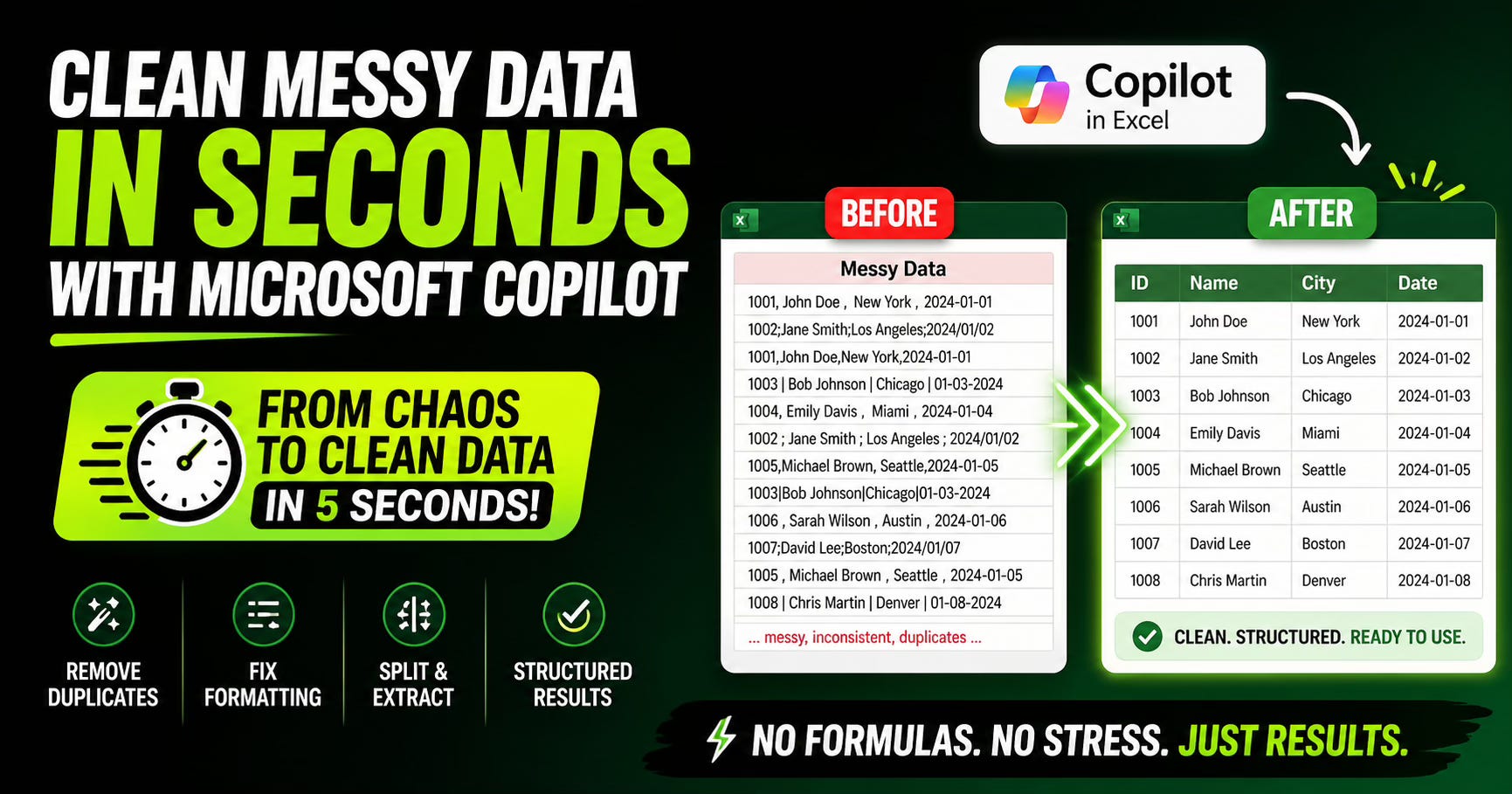
The real problem: people still clean data manually
When someone says:
“We need this cleaned by end of day”
What they usually mean is:
remove duplicates
standardize formatting
split columns
extract structured values from messy text
Traditionally, that means:
formulas (LEFT, RIGHT, MID, TEXTSPLIT…)
helper columns
trial and error
broken logic when formats change
But with Copilot, you can collapse all of that into a single instruction flow.
The Copilot mindset shift (this is the important part)
Copilot is not a formula tool.
It is a data transformation interpreter.
So instead of thinking:
“Which Excel function do I use?”
You think:
“What does the final clean dataset look like?”
That single shift is what makes this work.
The 2-part Copilot prompt method (this is the gold)
Most people fail because they try to do everything in one instruction.
Instead, you split it into two phases:
Phase 1 — Clean the structure
You tell Copilot:
remove duplicates
fix formatting inconsistencies
normalize the dataset
Phase 2 — Transform the data
You tell Copilot:
split rows based on delimiters
extract only the required values
map results to specific headers
Step-by-step workflow
1. Open Copilot in Excel
Select your dataset (don’t try to explain everything yet).
2. First prompt (cleaning phase)
Use this:
Remove duplicates from the dataset and standardize all formatting. Ensure consistent spacing, remove extra characters, and clean any irregular text entries.
3. Second prompt (structure transformation)
Now refine the output:
Split each row based on delimiters (such as commas, semicolons, or pipes). Extract only the relevant values and map them to the following headers: [Header1], [Header2], [Header3], [Header4]. Return only structured columns with no extra text.
4. Confirm column mapping
If Copilot asks for clarification:
explicitly confirm headers
ensure it understands delimiter logic
avoid vague terms like “clean it nicely”
5. Review output (this is the magic moment)
What used to take 30–60 minutes of formulas and fixing:
becomes structured data instantly
no helper columns
no formula debugging
no manual parsing
Why this works (most people miss this)
Copilot performs best when:
You separate cleaning vs transformation
You define output structure clearly
You avoid explaining “how” and focus on “what”
Bad prompt:
“Fix this spreadsheet”
Good prompt:
“Return a normalized dataset with 4 structured columns extracted from delimited text”
Real-world use cases (where this becomes powerful)
You can apply this to:
invoice data cleanup
CRM exports
survey responses
API dumps pasted into Excel
messy copy-paste reports from emails
Basically anything where humans created chaos.
The bigger takeaway
Tools like Copilot don’t replace Excel skills.
They replace manual thinking loops.
The advantage is no longer:
“Who knows Excel better?”
It’s:
“Who can describe the transformation better?”
Final thought
Most people waste hours cleaning data because they still think in formulas.
The people moving fast now think in:
inputs
transformations
outputs
That’s it.
And once you see Copilot this way, messy data stops being a problem entirely.